

Authenticator App (TOTP)
To enroll a TOTP device, visit your account profile and click the Set Up Authenticator App button. Ghostwriter will provide you with a QR code to scan with 1Password, Google Authenticator, or any other TOTP app you prefer. The setup page also provides a secret if you want to configure an app manually.
Security Keys and Passkeys (WebAuthn)
Ghostwriter also supports WebAuthn authentication using:- Hardware security keys (like YubiKey, Titan Security Key)
- Platform authenticators (Touch ID, Face ID, Windows Hello)
- Passkeys stored in password managers or devices
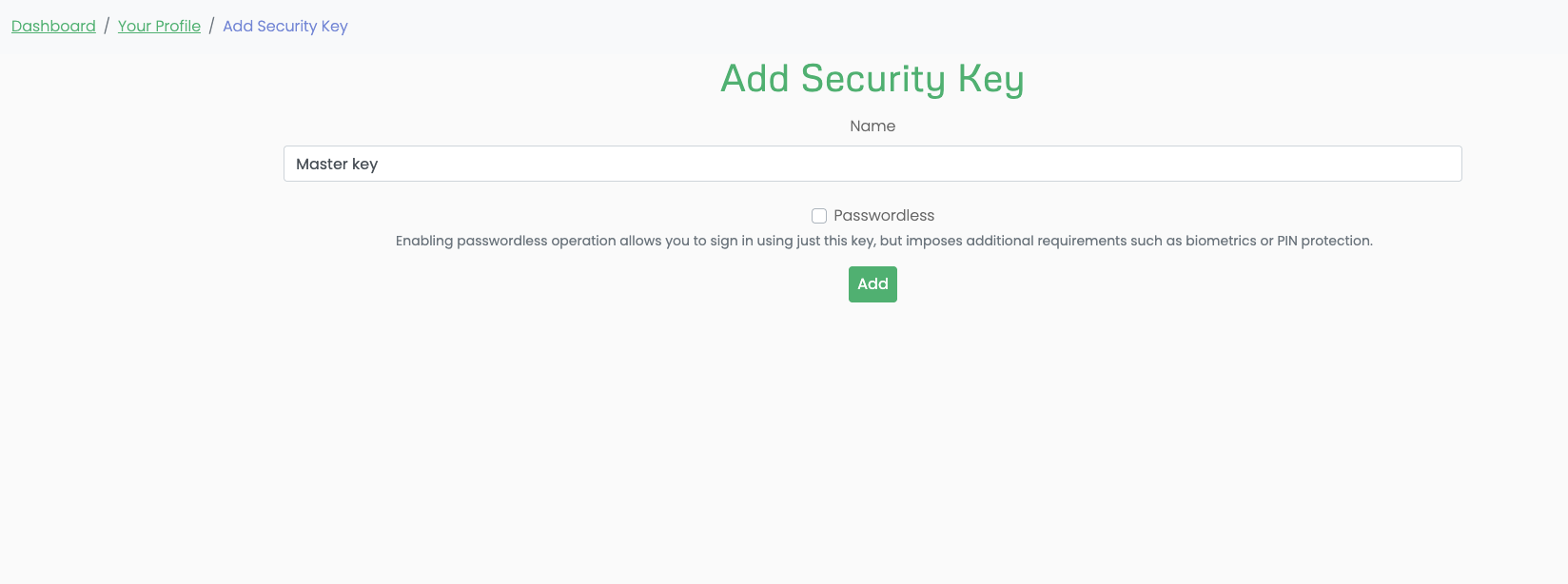
- Visit your account profile and click Set Up Security Key
- Choose whether to create a passkey (for passwordless login) or a security key (for two-factor authentication)
- Follow your browser’s prompts to register your authenticator
- Give your key a memorable name for easy identification
Passkey Login
When passkey login is enabled, you’ll see a “Sign in with a passkey” button on the login page. This allows you to authenticate using your registered passkey without entering a username and password. Administrators can control passkey login with theDJANGO_MFA_PASSKEY_LOGIN_ENABLED environment variable. It defaults to true.
Managing Your Authentication Methods
From your profile page, you can:- Authenticator App: Set up or remove TOTP authentication
- Security Key: Add, edit, or remove WebAuthn devices
- Backup Codes: Generate recovery codes for account access