> ## Documentation Index
> Fetch the complete documentation index at: https://www.ghostwriter.wiki/llms.txt
> Use this file to discover all available pages before exploring further.
# Report Template Linting
> Introducing the report template linter and how to read the results
## Introduction to the Report Template Linter
Ghostwriter automatically lints report templates when:
* The template is first created
* The template file changes
* The template's **Doc Type** value changes
You can also request the template to be linted at any time by viewing the template's details and selecting **Lint** from the options menu.
## Template Statuses
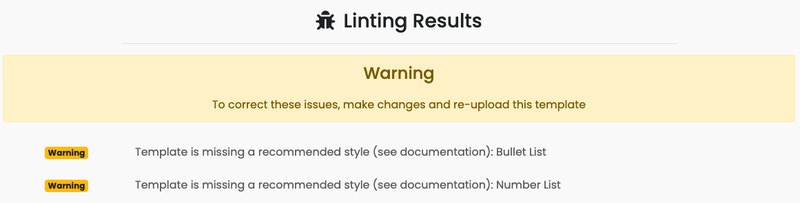 There are four possible linter results:
* **Success** – The template is ready to be used
* **Warning** – The template passed basic linting checks but might not give you the results you want
* **Failed** – The template failed the basic linting checks and cannot be used for report generation
* **Error** – Essentially the same as *Failed* but means the linter encountered an error and could not complete linting
### Linting Checks
The linter checks several basic things to make sure the template is usable and then checks a few custom things:
1. \[All] Template file exists on the file system
2. \[All] File type matches the selected **Doc Type** value
3. \[All] File can be opened as the selected **Doc Type** value
4. \[PowerPoint Only] Template contains zero slides
5. \[Word Only] All Jinja2 expressions, statements, and filters are recognized
6. \[Word Only] Report engine can successfully render a document using the template
7. \[Word Only] Template contains the [recommended styles](/features/reporting/report-templates/word-template-styles)
Any issues related to the first three checks or a test report generation will result in a **Failed** status. The rest of the checks will generate warnings.
#### Reviewing Your Template's Styles
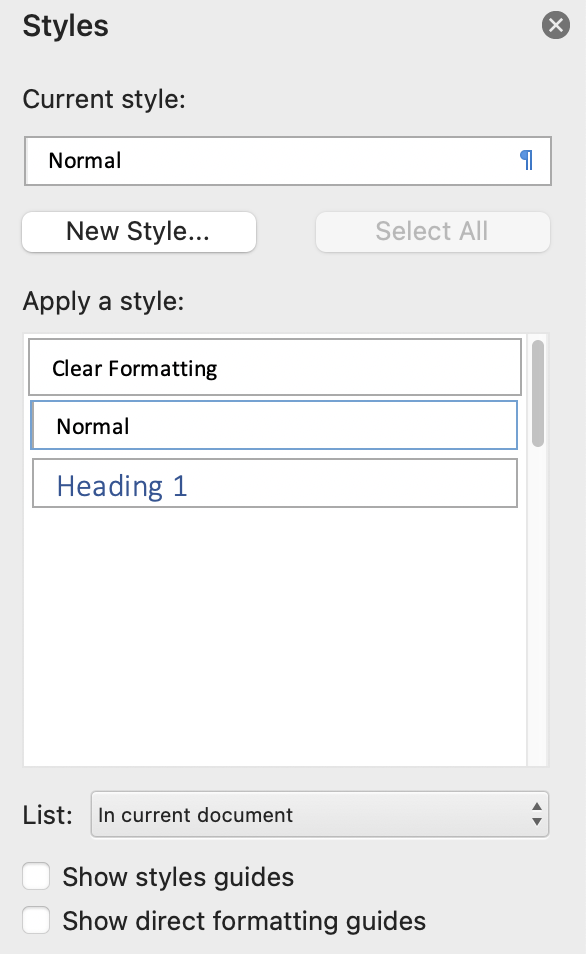
If you'd like to check a Word template's available styles before uploading, open the template in Word and follow these steps:
1. Under the ribbon's *Home* tab, go to the styles gallery and locate the *Styles Pane* button
2. Click the button to open the pane and view the list of *Recommended* (default) styles
3. Look at the bottom of the pane to find the *List* filter dropdown box
4. Click the dropdown and select *In current document*
The list of styles in a new document is far more limited than what you see in the style gallery or style pane.
There are four possible linter results:
* **Success** – The template is ready to be used
* **Warning** – The template passed basic linting checks but might not give you the results you want
* **Failed** – The template failed the basic linting checks and cannot be used for report generation
* **Error** – Essentially the same as *Failed* but means the linter encountered an error and could not complete linting
### Linting Checks
The linter checks several basic things to make sure the template is usable and then checks a few custom things:
1. \[All] Template file exists on the file system
2. \[All] File type matches the selected **Doc Type** value
3. \[All] File can be opened as the selected **Doc Type** value
4. \[PowerPoint Only] Template contains zero slides
5. \[Word Only] All Jinja2 expressions, statements, and filters are recognized
6. \[Word Only] Report engine can successfully render a document using the template
7. \[Word Only] Template contains the [recommended styles](/features/reporting/report-templates/word-template-styles)
Any issues related to the first three checks or a test report generation will result in a **Failed** status. The rest of the checks will generate warnings.
#### Reviewing Your Template's Styles
If you'd like to check a Word template's available styles before uploading, open the template in Word and follow these steps:
1. Under the ribbon's *Home* tab, go to the styles gallery and locate the *Styles Pane* button
2. Click the button to open the pane and view the list of *Recommended* (default) styles
3. Look at the bottom of the pane to find the *List* filter dropdown box
4. Click the dropdown and select *In current document*
The list of styles in a new document is far more limited than what you see in the style gallery or style pane.