> ## Documentation Index
> Fetch the complete documentation index at: https://www.ghostwriter.wiki/llms.txt
> Use this file to discover all available pages before exploring further.
# Report Templates
> Managing report templates for Word and PowerPoint
## Introducing Report Templates
Ghostwriter builds Word and PowerPoint reports using templates. The project includes two basic templates: *template.docxs* and *template.pptx*.
### Report Template Library
The template library is where you manage all of your templates. The library lives under `/reporting/templates/`.
#### Uploading Templates
Upload a template by selecting **Reports** from the sidebar and then clicking **Add New Report Template**. The template form has a few options for controlling how the template is used and who can edit it.
Users with the default `user` role can upload and edit unprotected templates for clients they can access. They must select a client when uploading a template. Managers, administrators, and users granted **Allow Report Template Management** can also create global templates, mark templates as protected, edit global or protected templates, and delete templates.
The report template management permission is useful for roles such as technical writers who maintain shared templates but should not have manager access. It does not grant access to additional clients or projects. A template manager can administer a client-scoped template only when they already have access to that client.
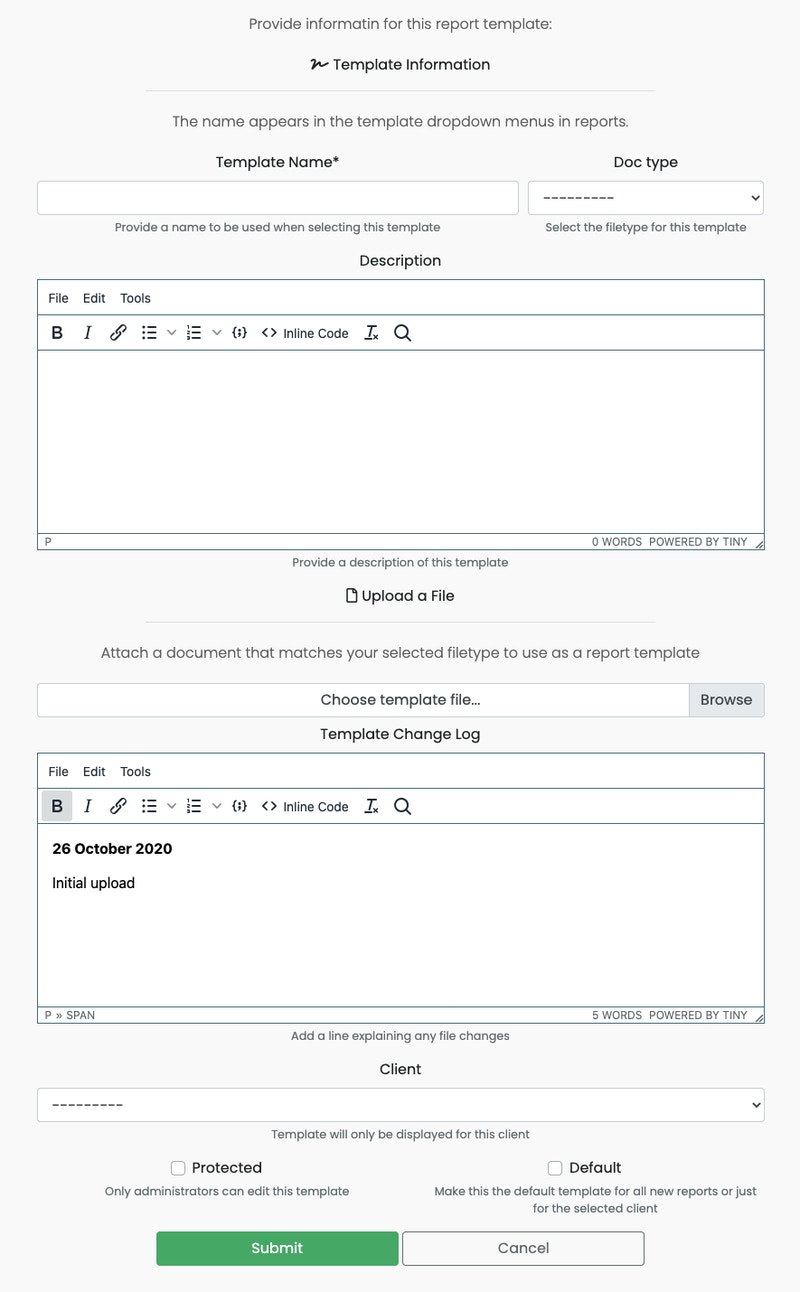 The **Template Name** is what users will select from the report template dropdown menus. The **Doc Type** (*docx* or *pptx*) affects under which reports the template will appear as an option and how the template linter reads the document. These two fields are required.
The template document is also required. Whether **Client** is required depends on the uploader's report template permissions, as described below.
The remaining fields control the template's scope and behavior:
* **Description** – Use to describe a template or note how it should be used
* **Client** – A client-scoped template is only available when generating a report for a project linked to that client. Regular users must select a client they can access. Users with report template management permission may leave this blank to create a global template.
* **Protected** – If checked, only managers, administrators, and users granted report template management permission can edit the template
* **Change Log** – Use it to keep track of changes (pre-filled with the current date and an initial message when a template is first uploaded)
Global templates are visible throughout Ghostwriter and may be selected for reports belonging to any client. Grant report template management permission only to users trusted to maintain these shared templates.
### How Ghostwriter Uses Templates
When you generate a Word or PowerPoint document, Ghostwriter will follow this workflow:
1. Fetch your selected template OR the default template for that document type (docx or pptx)
2. Check the linter status of the template
3. If the linter status is acceptable (not `failed` or `error`), proceed with report generation
Pay attention to the linter messages for your templates. You want to use templates that have successfully passed linting. A template with warnings is acceptable but the results may not be what you want.
The **Template Name** is what users will select from the report template dropdown menus. The **Doc Type** (*docx* or *pptx*) affects under which reports the template will appear as an option and how the template linter reads the document. These two fields are required.
The template document is also required. Whether **Client** is required depends on the uploader's report template permissions, as described below.
The remaining fields control the template's scope and behavior:
* **Description** – Use to describe a template or note how it should be used
* **Client** – A client-scoped template is only available when generating a report for a project linked to that client. Regular users must select a client they can access. Users with report template management permission may leave this blank to create a global template.
* **Protected** – If checked, only managers, administrators, and users granted report template management permission can edit the template
* **Change Log** – Use it to keep track of changes (pre-filled with the current date and an initial message when a template is first uploaded)
Global templates are visible throughout Ghostwriter and may be selected for reports belonging to any client. Grant report template management permission only to users trusted to maintain these shared templates.
### How Ghostwriter Uses Templates
When you generate a Word or PowerPoint document, Ghostwriter will follow this workflow:
1. Fetch your selected template OR the default template for that document type (docx or pptx)
2. Check the linter status of the template
3. If the linter status is acceptable (not `failed` or `error`), proceed with report generation
Pay attention to the linter messages for your templates. You want to use templates that have successfully passed linting. A template with warnings is acceptable but the results may not be what you want.