> ## Documentation Index
> Fetch the complete documentation index at: https://www.ghostwriter.wiki/llms.txt
> Use this file to discover all available pages before exploring further.
# Exporting / Importing Operation Logs
> Exporting and importing activity log data
### Exporting
You can export a log to a csv file by navigating to the log list view and clicking the *Export* button next to the log you wish to export.
 ### Importing
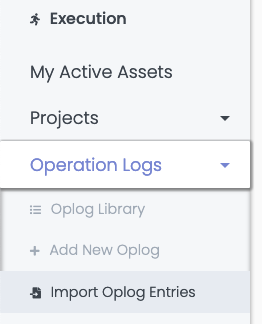
To import a CSV log file, open the *Operation Logs* menu in the sidebar and click *Import Oplog Entries*:
### Importing
To import a CSV log file, open the *Operation Logs* menu in the sidebar and click *Import Oplog Entries*:
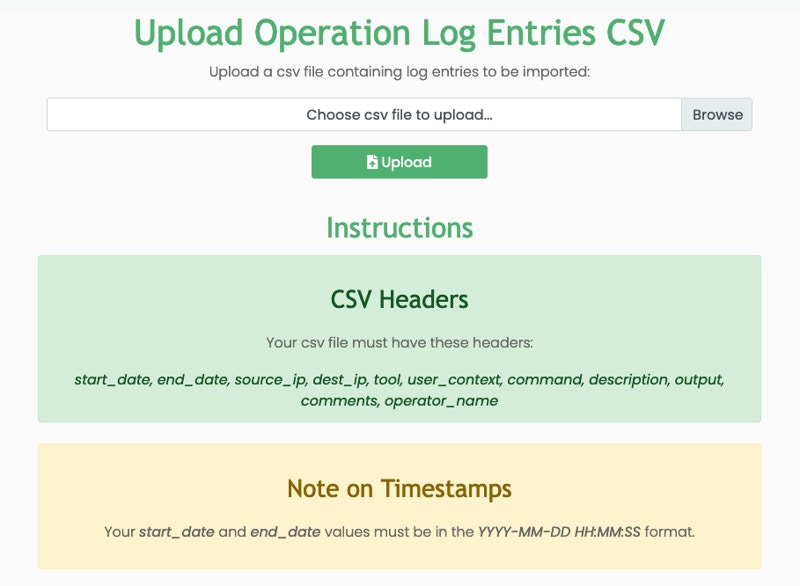
 Drag and drop your csv file or click the *Browse* button to select it. Once the file is selected, click on the green *Upload* button. You will be redirected to the log list page if successful. Otherwise, an error will be displayed indicating what went wrong during the import.