> ## Documentation Index
> Fetch the complete documentation index at: https://www.ghostwriter.wiki/llms.txt
> Use this file to discover all available pages before exploring further.
# Attaching Terminal Recordings to Log Entries
> Document terminal activities with Asciinema recordings
## Overview
Asciinema `.cast` files are text-based recordings of terminal sessions that capture every command, keystroke, and output from your
terminal. By attaching Asciinema recordings to operation log entries, you create an immutable, reproducible record of your
operational activities.
### Asciicast Files
Asciinema records asciicast files. The file specification is detailed in the Asciinema documentation. Ghostwriter supports v2 and v3:
* [asciicast v2](https://docs.asciinema.org/manual/asciicast/v2/)
* [asciicast v3](https://docs.asciinema.org/manual/asciicast/v3/)
Ghostwriter parses your uploaded asciicast file and stores the raw `i` and `o` (input and output) event strings alongside the
recording file. In this way, Ghostwriter includes recording content in your searches when you filter your log entries.
Ghostwriter supports both plain `.cast` files and Gzip-compressed `.cast.gz` files. Compressed recordings are
recommended for long sessions or high-output operations to save storage space and bandwidth.
Unlike manual notes or screenshots, terminal recordings provide full context:
* **Complete command history** showing exactly what was run
* **Full output** of all commands executed
* **Timing information** showing when each command was issued
* **Reproducible playback** allowing others to see the exact sequence of events
### When to Record
Record and attach terminal activity when:
* Running multi-step reconnaissance commands
* Key exploitation or post-exploitation activities
* System configuration changes
* Capturing proof-of-concept demonstrations
* Documenting complex technical workflows
* Creating evidence for forensic analysis
### Prerequisites
Asciinema files (`.cast` format) are plain-text JSON files that capture terminal sessions. Ghostwriter accepts both plain `.cast` files and Gzip-compressed `.cast.gz` files. You can create them using:
* **Asciinema CLI**: `asciinema rec filename.cast` (creates while recording)
* **Existing terminal session tools**: tmux/screen logs converted to `.cast` format
* **Manual `.cast` file creation**: If you have terminal output in text format
* **Compressed recordings**: Use `gzip filename.cast` to create `filename.cast.gz` for large recordings
## Recording a Terminal Session with Asciinema
### Installation
If you don't have Asciinema installed, follow the instructions in [Asciinema's documentation](https://docs.asciinema.org/manual/cli/installation/).
```bash Mac theme={"system"}
brew install asciinema
```
```bash Linux (Debian/Ubuntu) theme={"system"}
sudo apt-get install asciinema
```
```bash Linux (Fedora/RHEL) theme={"system"}
sudo dnf install asciinema
```
```powershell Windows with Python theme={"system"}
pip install asciinema
```
### Recording a Session
Start the recorder in your terminal:
```bash Start Recording theme={"system"}
asciinema rec output-filename.cast
```
Execute your commands and activities as normal
* Everything typed and all output is captured
* The recording starts immediately and captures keystrokes in real-time
End the recording by pressing `Ctrl+D` or typing `exit`
* Asciinema will display upload options (decline if you want to keep it local)
* The `.cast` file is saved to your specified filename
Test playback to verify the recording:
```bash Playback Recording theme={"system"}
asciinema play output-filename.cast
```
The `.cast` file format is a JSON-based plain-text file, approximately 10KB per minute of recording depending on output volume. For long sessions or high-output operations, compress the file using `gzip filename.cast` to create a much smaller `.cast.gz` file that Ghostwriter can use directly.
## Uploading Recordings via the Web Interface
Once you have a `.cast` or `.cast.gz` file, you can attach it to a log entry:
Open the log entry details by clicking the entry on left-side table view. The details will appear in the right-hand pane.
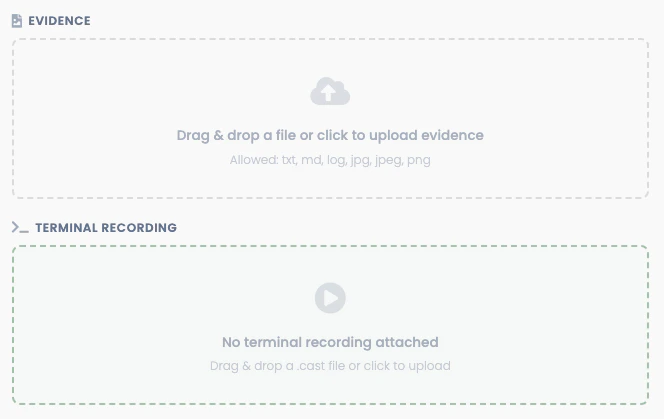
Scroll to the **Terminal Recording** section
If no recording has been attached yet, you will see the dropzone
Drag and drop your `.cast` or `.cast.gz` file into the dropzone or click it to open the file browser
 The system will:
* Validate the file extension is `.cast` or `.cast.gz`
* For compressed files, automatically serve them with proper headers for browser decompression
* Confirm the upload with a success message
* Add the "recording" tag to the log entry
* Make the recording available for playback
### Viewing and Playing Recordings
Once a recording is attached, you can view it in the log entry details:
The system will:
* Validate the file extension is `.cast` or `.cast.gz`
* For compressed files, automatically serve them with proper headers for browser decompression
* Confirm the upload with a success message
* Add the "recording" tag to the log entry
* Make the recording available for playback
### Viewing and Playing Recordings
Once a recording is attached, you can view it in the log entry details:
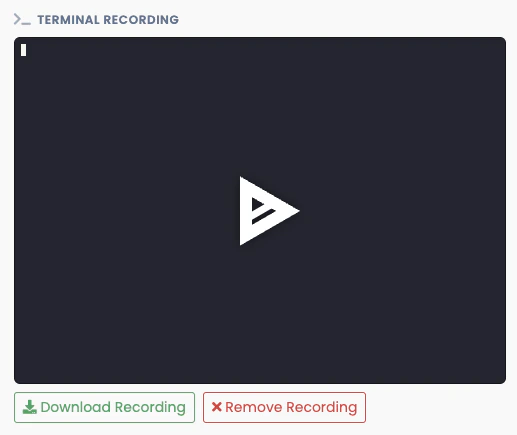 Click the play button to watch the terminal session playback.
### Deleting or Replacing a Recording
If a log entry already has a recording and you want to replace it:
Open the log entry details by clicking the entry on left-side table view. The details will appear in the right-hand pane.
Click the *Remove Recording* button to delete the recording.
This action cannot be undone! Consider downloading a copy before removing the file.
If you want to replace the recording, select a new `.cast` or `.cast.gz` file.
### Downloading a Recording
To download a recording for archival or external analysis:
Open the log entry details by clicking the entry on left-side table view. The details will appear in the right-hand pane.
Click the *Download Recording* button below the recording.
Some browsers may not prompt when downloading the Asciinema cast files. If it looks like nothing happened, check your
downloads location for the file.
Play locally using `asciinema play filename.cast`
## Uploading Recordings via GraphQL API
If you're automating log entry creation, you can upload recordings programmatically:
### GraphQL Mutation: `uploadOplogRecording`
```graphql Upload a Recording theme={"system"}
mutation UploadRecording {
uploadOplogRecording(input: {
oplogEntryId: 626
file_base64: "W1sxLjAsIEZhbHNlXSwgMC4xMjM0LCAidGV4dCIsICIkIl0=..."
filename: "session.cast"
}) {
id
}
}
```
**Parameters:**
* `oplogEntryId` (required): The ID of the log entry to attach the recording to
* `file_base64` (required): The `.cast` or `.cast.gz` file encoded as base64
* `filename` (required): The filename of the recording (must end with `.cast` or `.cast.gz`)
**Response:**
```json Upload Response theme={"system"}
{
"id": 456,
}
```
**Authorization:**
* Requires authentication
* User must have edit permissions for the operation log entry's project
### Retrieving Recording Metadata and Content
To download a recording or retrieve its details:
```graphql Download a Recording theme={"system"}
query {
downloadOplogRecording(input: {
oplogEntryId: 626
}) {
downloadUrl
fileBase64
filename
}
}
```
**Response:**
```json Download Response theme={"system"}
{
"downloadUrl": "http://ghostwriter.local/oplog/recording/16/download",
"fileBase64": "W1sxLjAsIEZhbHNlXSwgMC4xMjM0LCAidGV4dCIsICIkIl0=...",
"filename": "session.cast"
}
```
The `fileBase64` field is only populated if you explicitly request it in the query. Use `downloadUrl` for serving the file directly or
to build download links.
## Asciinema Technical Details
You can learn more about [Asciinema here](https://asciinema.org).
### `.cast` File Format
The Asciinema `.cast` format is a new-line delimited JSON-based and follows this structure:
```json Example Asciinema File Header theme={"system"}
{"version":3,"term":{"cols":88,"rows":25,"type":"xterm-256color","version":"iTerm2 3.6.9","theme":{"fg":"#f8f8f3","bg":
"#212121","palette":"#21222b:#ec615c:#85f789:#f7cd7a:#8aa9f9:#bf94e5:#a1e7fb:#f8f8f3:#545454:#ee7773:#94fc9f:#f7cd7a:
#d0aefa:#f197dc:#b9fdfe:#f8f8f3"}},"timestamp":1773250286,"env":{"SHELL":"/bin/zsh"}}
[4.159, "o", "\u001b[1m\u001b[7m%\u001b[27m\u001b[1m\u001b[0m \r \r"]
```
The file format is detailed in the [Asciinema documentation](https://docs.asciinema.org/manual/asciicast/v3/).
### File Size Considerations
* Average recording: 10KB per minute for plain `.cast` files
* High-output operations: Can reach 100+ KB per minute
* Compressed `.cast.gz` files: Typically 10-20% of original size due to plaintext repetition
* Asciinema does not support "lazy-loading" or streaming content, so the entire file must be loaded in browser memory for playback.
For sessions longer than 30 minutes or operations with high terminal output (e.g., verbose enumeration tools, compilation logs), compress your `.cast` files using `gzip filename.cast` before uploading. This significantly reduces storage space and download time while maintaining full functionality in Ghostwriter's player.
## Best Practices
* **Start recording before action begins**: Start Asciinema before running commands, not after
* **Keep recordings focused**: Record a single activity or workflow, not entire operations
* **Use meaningful filenames**: Name recordings by activity (e.g., `seatbelt-execution.cast`)
* **Verify quality**: Test playback before attaching to ensure timing and output are correct
* **Clean sensitive data**: If recording captures credentials or sensitive data, create a separate sanitized version
* **Supplement with notes**: Use the log entry fields to describe the objective and key findings
* **Compress cast files**: Compress recordings that are longer than 30 minutes or have a high volume of commands and/or output
## Troubleshooting
**"Can't play the recording in Ghostwriter?"**
Click the play button to watch the terminal session playback.
### Deleting or Replacing a Recording
If a log entry already has a recording and you want to replace it:
Open the log entry details by clicking the entry on left-side table view. The details will appear in the right-hand pane.
Click the *Remove Recording* button to delete the recording.
This action cannot be undone! Consider downloading a copy before removing the file.
If you want to replace the recording, select a new `.cast` or `.cast.gz` file.
### Downloading a Recording
To download a recording for archival or external analysis:
Open the log entry details by clicking the entry on left-side table view. The details will appear in the right-hand pane.
Click the *Download Recording* button below the recording.
Some browsers may not prompt when downloading the Asciinema cast files. If it looks like nothing happened, check your
downloads location for the file.
Play locally using `asciinema play filename.cast`
## Uploading Recordings via GraphQL API
If you're automating log entry creation, you can upload recordings programmatically:
### GraphQL Mutation: `uploadOplogRecording`
```graphql Upload a Recording theme={"system"}
mutation UploadRecording {
uploadOplogRecording(input: {
oplogEntryId: 626
file_base64: "W1sxLjAsIEZhbHNlXSwgMC4xMjM0LCAidGV4dCIsICIkIl0=..."
filename: "session.cast"
}) {
id
}
}
```
**Parameters:**
* `oplogEntryId` (required): The ID of the log entry to attach the recording to
* `file_base64` (required): The `.cast` or `.cast.gz` file encoded as base64
* `filename` (required): The filename of the recording (must end with `.cast` or `.cast.gz`)
**Response:**
```json Upload Response theme={"system"}
{
"id": 456,
}
```
**Authorization:**
* Requires authentication
* User must have edit permissions for the operation log entry's project
### Retrieving Recording Metadata and Content
To download a recording or retrieve its details:
```graphql Download a Recording theme={"system"}
query {
downloadOplogRecording(input: {
oplogEntryId: 626
}) {
downloadUrl
fileBase64
filename
}
}
```
**Response:**
```json Download Response theme={"system"}
{
"downloadUrl": "http://ghostwriter.local/oplog/recording/16/download",
"fileBase64": "W1sxLjAsIEZhbHNlXSwgMC4xMjM0LCAidGV4dCIsICIkIl0=...",
"filename": "session.cast"
}
```
The `fileBase64` field is only populated if you explicitly request it in the query. Use `downloadUrl` for serving the file directly or
to build download links.
## Asciinema Technical Details
You can learn more about [Asciinema here](https://asciinema.org).
### `.cast` File Format
The Asciinema `.cast` format is a new-line delimited JSON-based and follows this structure:
```json Example Asciinema File Header theme={"system"}
{"version":3,"term":{"cols":88,"rows":25,"type":"xterm-256color","version":"iTerm2 3.6.9","theme":{"fg":"#f8f8f3","bg":
"#212121","palette":"#21222b:#ec615c:#85f789:#f7cd7a:#8aa9f9:#bf94e5:#a1e7fb:#f8f8f3:#545454:#ee7773:#94fc9f:#f7cd7a:
#d0aefa:#f197dc:#b9fdfe:#f8f8f3"}},"timestamp":1773250286,"env":{"SHELL":"/bin/zsh"}}
[4.159, "o", "\u001b[1m\u001b[7m%\u001b[27m\u001b[1m\u001b[0m \r \r"]
```
The file format is detailed in the [Asciinema documentation](https://docs.asciinema.org/manual/asciicast/v3/).
### File Size Considerations
* Average recording: 10KB per minute for plain `.cast` files
* High-output operations: Can reach 100+ KB per minute
* Compressed `.cast.gz` files: Typically 10-20% of original size due to plaintext repetition
* Asciinema does not support "lazy-loading" or streaming content, so the entire file must be loaded in browser memory for playback.
For sessions longer than 30 minutes or operations with high terminal output (e.g., verbose enumeration tools, compilation logs), compress your `.cast` files using `gzip filename.cast` before uploading. This significantly reduces storage space and download time while maintaining full functionality in Ghostwriter's player.
## Best Practices
* **Start recording before action begins**: Start Asciinema before running commands, not after
* **Keep recordings focused**: Record a single activity or workflow, not entire operations
* **Use meaningful filenames**: Name recordings by activity (e.g., `seatbelt-execution.cast`)
* **Verify quality**: Test playback before attaching to ensure timing and output are correct
* **Clean sensitive data**: If recording captures credentials or sensitive data, create a separate sanitized version
* **Supplement with notes**: Use the log entry fields to describe the objective and key findings
* **Compress cast files**: Compress recordings that are longer than 30 minutes or have a high volume of commands and/or output
## Troubleshooting
**"Can't play the recording in Ghostwriter?"**
 * Files Asciinema cannot understand will appear as a broken video player
* Verify the file is a valid `.cast` format from Asciinema
* Check that the file extension is exactly `.cast` (lowercase)
* Try playing it locally first: `asciinema play filename.cast`
**"Recording seems to be missing commands?"**
* Some command-line tools clear the screen; scroll through the playback timeline to find them
* Check that the entire session was captured by playing the file locally first
**"Can I edit a `.cast` file after recording?"**
* Yes—`.cast` files are JSON and can be edited with any text editor
* Common edits: removing sensitive commands, fixing timing issues, or adding annotations
* Files Asciinema cannot understand will appear as a broken video player
* Verify the file is a valid `.cast` format from Asciinema
* Check that the file extension is exactly `.cast` (lowercase)
* Try playing it locally first: `asciinema play filename.cast`
**"Recording seems to be missing commands?"**
* Some command-line tools clear the screen; scroll through the playback timeline to find them
* Check that the entire session was captured by playing the file locally first
**"Can I edit a `.cast` file after recording?"**
* Yes—`.cast` files are JSON and can be edited with any text editor
* Common edits: removing sensitive commands, fixing timing issues, or adding annotations