> ## Documentation Index
> Fetch the complete documentation index at: https://www.ghostwriter.wiki/llms.txt
> Use this file to discover all available pages before exploring further.
# Using the Hasura Console
> How to enable and use the Hasura Console to access the GraphQL API
## Introduction
The Hasura GraphQL Engine offers a web console where you can explore the API. It includes a useful code exporter that can help you develop GraphQL queries and export them as JavaScript or TypeScript.
The console is useful for crafting queries and experimenting with the API, but it can be dangerous.
Hasura is connected **directly** to the PostgreSQL database! Changes made in the Hasura console take immediate effect. Changing the schema or deleting data will irreversibly change your database and could render Ghostwriter unusable.
Further, Hasura will wipe any configuration changes when the service is restarted. Even so, some changes may trigger changes to the PostgreSQL database, resulting in mismatched configurations on restart. Hasura's configuration should be left alone unless you have read Hasura's documentation and are certain you know what you are doing.
If accessed, the console should be used only for developing GraphQL queries.
## Accessing the Console
Access to this console is disabled by default for new production installations. If you would like to access it, run these commands to enable the console and restart Ghostwriter:
```
./ghostwriter-cli config set hasura_graphql_enable_console true
./ghostwriter-cli containers down
./ghostwriter-cli containers up
```
Once the services have restarted, the console will be available at:
*https\://\/console*
If you are running a local `dev` environment, the Hasura console is enabled and will run on port 8080. You can access the console by visiting: *[http://127.0.0.1:8080/console](http://127.0.0.1:8080/console)*
Accessing the console requires the Hasura admin secret. You can get that by running:
`./ghostwriter-cli config get hasura_password`
### Console Preparation
When you first access the console, the *API Explorer* will be configured to use the admin secret with the `X-Hasura-Admin-Secret` header for authentication. While using this header, you will be acting as an administrator with more permissions than you will have as your user, and some actions will be unavailable because they require an API token. This can create confusion later if use your queries outside Hasura's console with your API token.
It is best to create an API token for yourself by visiting your user profile and generating a new token or by using the `login` action.
Once you have a token, uncheck the box next to the `-X-Hasura-Admin-Secret` header and create a new `Authorization` header. Your new *API Explorer* window will look something like this:
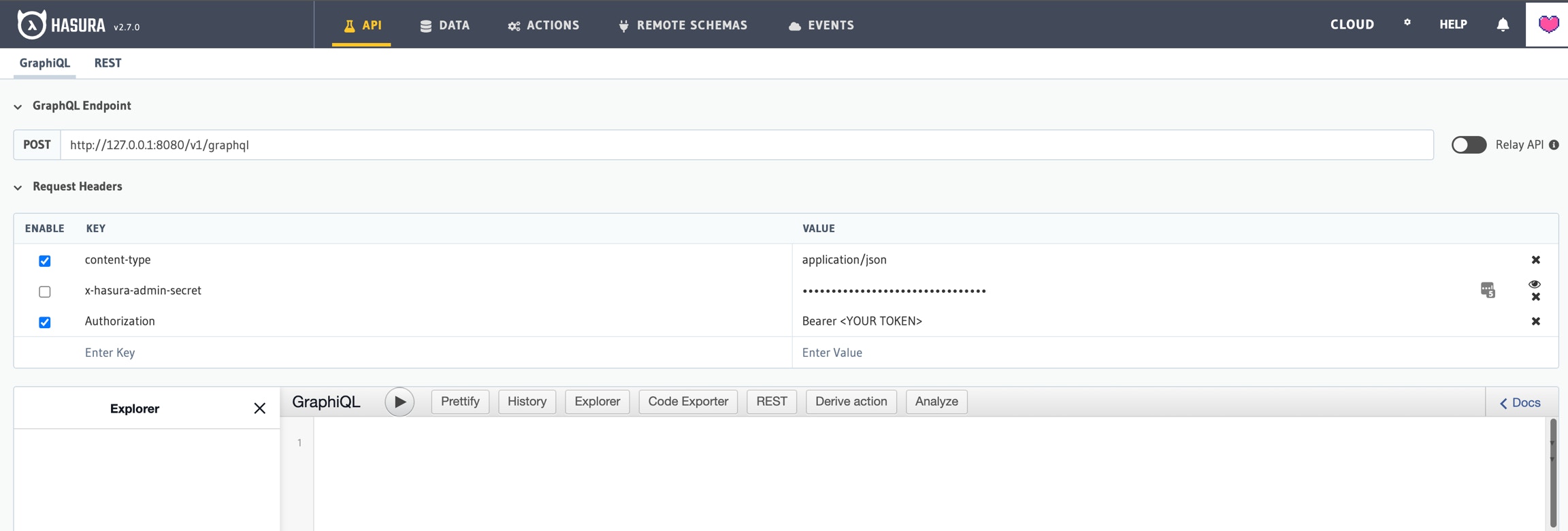 Now you will see the GraphQL queries and mutations available to your user under the *Explorer* panel.