> ## Documentation Index
> Fetch the complete documentation index at: https://www.ghostwriter.wiki/llms.txt
> Use this file to discover all available pages before exploring further.
# Common API Actions
> Description and explanation of common API actions
## Getting to Know the API Schema
The Hasura Console (see [Using the Hasura Console](/features/graphql-api/using-the-hasura-console)) is the easiest option for browsing the GraphQL schema. It's built into Ghostwriter, offers to autocomplete queries and mutations, and makes suggestions based on the schema, so it's friendly for people learning how GraphQL queries work.
However, the Hasura Console should not be made widely accessible to anyone except the server administrator.
For a safer option that offers all users access to something like the console, you can use an API testing/browsing application like Postman. Import the GraphQL SDL from the */DOCS/schema.graphql* in the code repository and configure your API token.
For example, using Postman:
1. Click *New* and add a new API
2. Give it a name (e.g., Ghostwriter) and set the schema type to GraphQL
3. Save it and then open your newly created API
4. Click the *Definition* tab and paste in the contents of the */DOCS/schema.graphql* file
5. Click *Save* and wait a bit for Postman to process the definitions
In the *Collections* tab, you can create requests with the newly created API. Select GraphQL as the format for the body and then select the API you just created from the dropdown list. Postman should auto-fetch the schema to enable auto-complete.
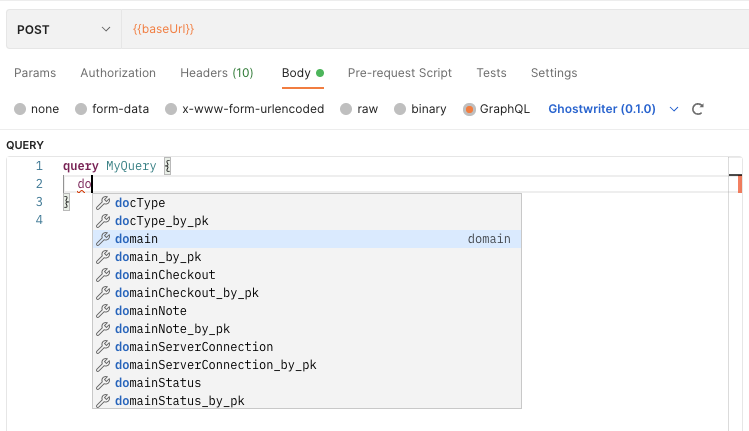 Now you can explore the API and get comfortable before converting queries and mutations into code for automation.
### Basic Query and Mutations
Most queries and mutations are straightforward and follow a naming convention that will become familiar. You can expect the following to be consistent:
* To query for something, you need only to name it (e.g., `domain` to query domains)
* To create a new record, you will use a mutation that begins with `insert_*`
* To update an existing record, you will use a mutation that begins with `update_*`
* To delete a record, you will use a mutation that begins with `delete_*`
You will also notice copies of queries and mutations with the `*_by_pk` suffix. These are handy when acting against a singular entry and writing a simpler query. Instead of writing a `_where` clause that filters the results by the `id` you want, these queries and mutations need only an `id` argument.
Both of these queries return the same result:
```json theme={"system"}
query DomainByPk {
domain_by_pk(id: 1) {
name
}
}
query Domain {
domain(where: {id: {_eq: "1"}}) {
name
}
}
```
### Special Queries and Mutations
Some queries and mutations have to break away from the above rules. These are special actions that trigger additional business logic before or after the action is completed.
#### Domain and Server Checkouts
The API uses `checkoutDomain` and `checkoutServer` mutations to prevent overlapping checkouts, attempts to checkout unavailable resources, and issues with bad dates. If a checkout passes all the checks, these actions also update the resource being checked out to mark them as unavailable.
Likewise, there are matching `deleteDomainCheckout` and `deleteServerCheckout` mutations. As needed, these mutations set the domain or server back to the "available" status.
#### Managing Evidence and Report Template Files
If deleting evidence uploads or report template files via the API, you will want to use the `deleteEvidence` and `deleteTemplate` mutations. These actions delete the database records and the files stored on the server's filesystem.
Use the `uploadReportTemplate` mutation when uploading a report template. The Action applies the same authorization rules as the Django interface:
* A regular user must select a client they can access and cannot mark the template as protected.
* Managers, administrators, and users granted **Allow Report Template Management** may upload global or protected templates.
* Report template management permission does not grant access to unrelated clients. A client-scoped template remains limited by the authenticated user's existing client access.
The `deleteTemplate` Action also verifies the authenticated user's report template management authority and access to the template's client scope. Although Hasura permits the `user` role to invoke the Action, an ordinary user without report template management permission cannot delete a template.
#### Generating Reports
You can use the `generateReport` mutation to get report data for a given report ID. The results offer the download URLs for docx, xlsx, and pptx. You can also request `reportData`, which is the raw JSON report data encoded as base64.
```json theme={"system"}
mutation GenerateReport {
generateReport(id: 1) {
docxUrl
pptxUrl
xlsxUrl
reportData
}
}
```
For more explicit examples and ideas, see this section:
Explore various GraphQL usage examples.
Now you can explore the API and get comfortable before converting queries and mutations into code for automation.
### Basic Query and Mutations
Most queries and mutations are straightforward and follow a naming convention that will become familiar. You can expect the following to be consistent:
* To query for something, you need only to name it (e.g., `domain` to query domains)
* To create a new record, you will use a mutation that begins with `insert_*`
* To update an existing record, you will use a mutation that begins with `update_*`
* To delete a record, you will use a mutation that begins with `delete_*`
You will also notice copies of queries and mutations with the `*_by_pk` suffix. These are handy when acting against a singular entry and writing a simpler query. Instead of writing a `_where` clause that filters the results by the `id` you want, these queries and mutations need only an `id` argument.
Both of these queries return the same result:
```json theme={"system"}
query DomainByPk {
domain_by_pk(id: 1) {
name
}
}
query Domain {
domain(where: {id: {_eq: "1"}}) {
name
}
}
```
### Special Queries and Mutations
Some queries and mutations have to break away from the above rules. These are special actions that trigger additional business logic before or after the action is completed.
#### Domain and Server Checkouts
The API uses `checkoutDomain` and `checkoutServer` mutations to prevent overlapping checkouts, attempts to checkout unavailable resources, and issues with bad dates. If a checkout passes all the checks, these actions also update the resource being checked out to mark them as unavailable.
Likewise, there are matching `deleteDomainCheckout` and `deleteServerCheckout` mutations. As needed, these mutations set the domain or server back to the "available" status.
#### Managing Evidence and Report Template Files
If deleting evidence uploads or report template files via the API, you will want to use the `deleteEvidence` and `deleteTemplate` mutations. These actions delete the database records and the files stored on the server's filesystem.
Use the `uploadReportTemplate` mutation when uploading a report template. The Action applies the same authorization rules as the Django interface:
* A regular user must select a client they can access and cannot mark the template as protected.
* Managers, administrators, and users granted **Allow Report Template Management** may upload global or protected templates.
* Report template management permission does not grant access to unrelated clients. A client-scoped template remains limited by the authenticated user's existing client access.
The `deleteTemplate` Action also verifies the authenticated user's report template management authority and access to the template's client scope. Although Hasura permits the `user` role to invoke the Action, an ordinary user without report template management permission cannot delete a template.
#### Generating Reports
You can use the `generateReport` mutation to get report data for a given report ID. The results offer the download URLs for docx, xlsx, and pptx. You can also request `reportData`, which is the raw JSON report data encoded as base64.
```json theme={"system"}
mutation GenerateReport {
generateReport(id: 1) {
docxUrl
pptxUrl
xlsxUrl
reportData
}
}
```
For more explicit examples and ideas, see this section:
Explore various GraphQL usage examples.