> ## Documentation Index
> Fetch the complete documentation index at: https://www.ghostwriter.wiki/llms.txt
> Use this file to discover all available pages before exploring further.
# Single Sign-On
> Authentication and account creation via an external SSO provider
Ghostwriter incorporates `django-allauth` to extend basic account creation and authentication to support Single Sign-On (SSO) and multi-factor authentication (MFA). You can
learn more here:
[Introduction - django-allauth](https://docs.allauth.org/en/latest/introduction/index.html)
The `django-allauth` documentation covers the available SSO providers. There are dozens of options for social networks and business accounts, but the major providers you are
probably looking for are covered–e.g., Microsoft, Google, GitHub, Slack, and Okta.
### Configuring an SSO Provider
Once you have an SSO provider you want to implement, find the provider here to get the necessary configuration template:
First, create a Python file inside the proper directory. For a default installation using the published Ghostwriter images, add files to *ghostwriter/settings* inside your
operating system's data file directory.
For `local-dev` or `local-prod` modes, create the file(s) in *config/settings/local.d* or *production.d* directory.
Files in these directories are loaded after the main configuration files. They load in order, so you can create multiple files with number prefixes to control ordering
(e.g., *1-custom-config.py* and *2-custom-config.py*).
For example, you might make *1-sso-provider.py* to hold your SSO configuration and *2-mail-config.py* to hold your email backend configuration.
Your new config file must contain these settings at a minimum. We'll use Microsoft as an example for these steps.
```python SSO Provider Config theme={"system"}
# Provider(s) configuration
SOCIALACCOUNT_PROVIDERS = {
"microsoft": {
"APP": {
"client_id": "CLIENT ID",
"secret": "SECRET",
}
},
}
# Extend the installed apps with the SSO app for your provider(s)
SSO_PROVIDERS = ["allauth.socialaccount.providers.microsoft"]
INSTALLED_APPS = INSTALLED_APPS + SSO_PROVIDERS
```
The above lines add our provider (Microsoft for this example) to Ghostwriter's installed apps and provide the information necessary for the SSO handshake. You can find
the values you need for your provider(s) at the above link.
You can enable multiple SSO providers by extending the `SOCIALACCOUNT_PROVIDERS` configuration and list of `SSO_PROVIDERS`.
There are a few more configuration options you may need to change.
### SSO Registration and Domain Allowlist
When someone authenticates with an SSO provider, one of two things can happen:
1. The SSO login creates a new account linked to the provider.
2. The SSO login matches an existing local account; the two become linked, and the user is logged in under that local account.
For the first scenario, you can control new account registration by toggling `DJANGO_SOCIAL_ACCOUNT_ALLOW_REGISTRATION` to `true` or `false` with Ghostwriter CLI.
Alternatively, you can set `SOCIAL_ACCOUNT_ALLOW_REGISTRATION` in your config file.
Using Ghostwriter CLI for these configuration changes makes everything easier. To apply the change (e.g., turning registration on or off), you must only bring the containers
down and back up. If you change a Python config file, the containers must be rebuilt.
You may want to allow registration but only for specific domains. The domain allowlist manages email domains you want to allow to authenticate or register via SSO. Like the
registration setting, you can set this via Ghostwriter CLI or in your config file.
Set `DJANGO_SOCIAL_ACCOUNT_DOMAIN_ALLOWLIST` with Ghostwriter CLI or `SOCIAL_ACCOUNT_DOMAIN_ALLOWLIST` in your config file. The allowlist can be defined as a space-separated
list or a Python list (if setting it in your config file).
Here is what this might look like in your config file:
```python SSO Domain Allowlist theme={"system"}
# Enable or disable registration
SOCIAL_ACCOUNT_ALLOW_REGISTRATION = True
# Allow only these email domains
SOCIAL_ACCOUNT_DOMAIN_ALLOWLIST = ["specterops.io"]
```
These settings allow registration via an SSO provider, but only if the account's email address has the *specterops.io* domain.
If a local account with a matching email address already exists, the user will be prompted to enter a different address for their new account. This will most likely arise when
transitioning from local accounts to a new SSO provider. You will probably want to link the accounts in these cases.
An error is raised if multiple existing accounts share the same email address. Rather than trying to connect one of them, the user will see a message encouraging them to
contact an administrator.
You can link accounts by enabling your provider to authenticate via the account's email address. By default, email authentication is disabled, and the provider must have
pre-verified the email address. Use the following settings if you trust the provider and want to consider email addresses as verified.
```python SSO Email Authentication theme={"system"}
SOCIALACCOUNT_PROVIDERS = {
"microsoft": {
"APP": {
"client_id": "",
"secret": "",
},
"EMAIL_AUTHENTICATION": True,
"VERIFIED_EMAIL": True,
},
}
```
These settings enable Microsoft email authentication and consider all email addresses verified for automatic connection.
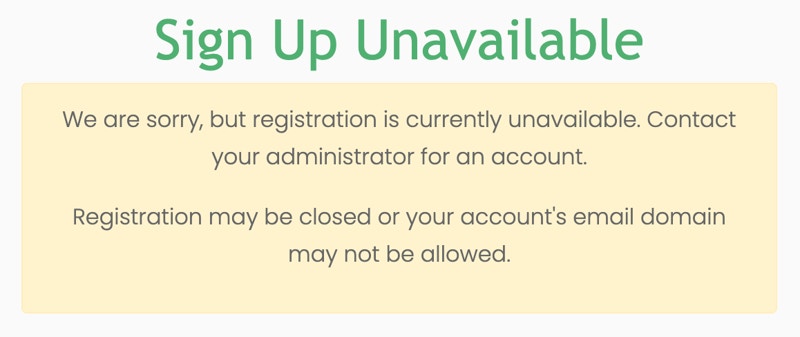
If someone were to authenticate with a Microsoft account, they would only be allowed to create or link an account if registration is enabled and the domain allowlist
checks passed. If either check fails, the user will be redirected to a page like this.
 ### Additional SSO Settings
Depending on your SSO provider, you may need to consider other configuration options. One common request is how to bypass clicking twice when signing in. By default,
the sign-in page redirects users to a confirmation screen. The user must click the button to initiate the handshake with the SSO provider. This is a security feature to prevent abuse of an open redirect, but you can change the behavior.
If you wish to have users log in immediately when they click the provider button, set `DJANGO_SOCIAL_ACCOUNT_LOGIN_ON_GET` to `true` with Ghostwriter CLI. For information
is available here:
docs.allauth.org
### Additional SSO Settings
Depending on your SSO provider, you may need to consider other configuration options. One common request is how to bypass clicking twice when signing in. By default,
the sign-in page redirects users to a confirmation screen. The user must click the button to initiate the handshake with the SSO provider. This is a security feature to prevent abuse of an open redirect, but you can change the behavior.
If you wish to have users log in immediately when they click the provider button, set `DJANGO_SOCIAL_ACCOUNT_LOGIN_ON_GET` to `true` with Ghostwriter CLI. For information
is available here:
docs.allauth.org