> ## Documentation Index
> Fetch the complete documentation index at: https://www.ghostwriter.wiki/llms.txt
> Use this file to discover all available pages before exploring further.
# Configuring Slack
> Enabling Slack WebHooks for notifications
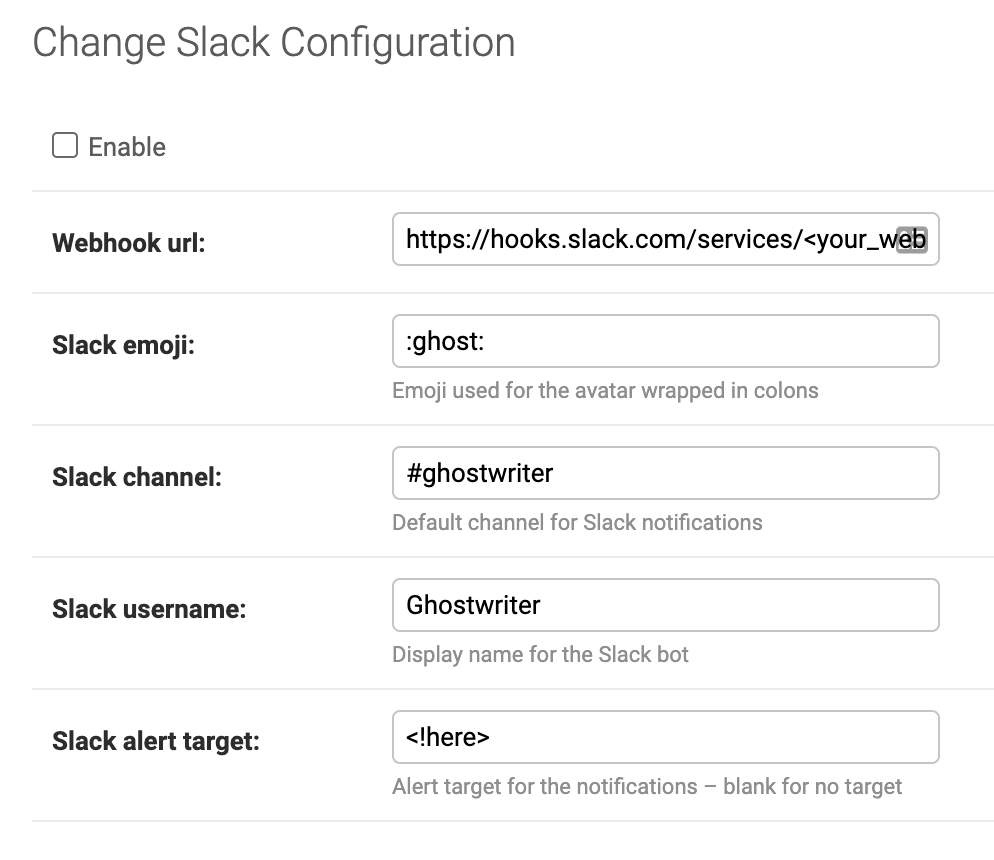
If enabled, Ghostwriter will use Slack to send notifications and reminders to configured channels. The configuration requires an incoming Webhook.
Slack API
Specify a username and emoji for the bot. Emojis must be set using Slack syntax like (e.g., `:ghost:`). You can use any emoji available in your Slack team – including custom emojis.
The username can be anything you could use for a Slack username. The emoji will appear as the bot's avatar alongside the username.
The alert target is the message target. You can set this to a blank string or a user, aliases, or @here/@channel. Slack username/alias targets must be written as ``, ``, or `<@username>` for them to work as actual notification keywords.
Finally, set the target channel. This might be your `#general` or some other channel. This is the global value Ghostwriter will use for all messages unless a project-specific channel is supplied. When users create a new project, there is an option to provide a Slack channel for project-related notifications.